Cast code pairing
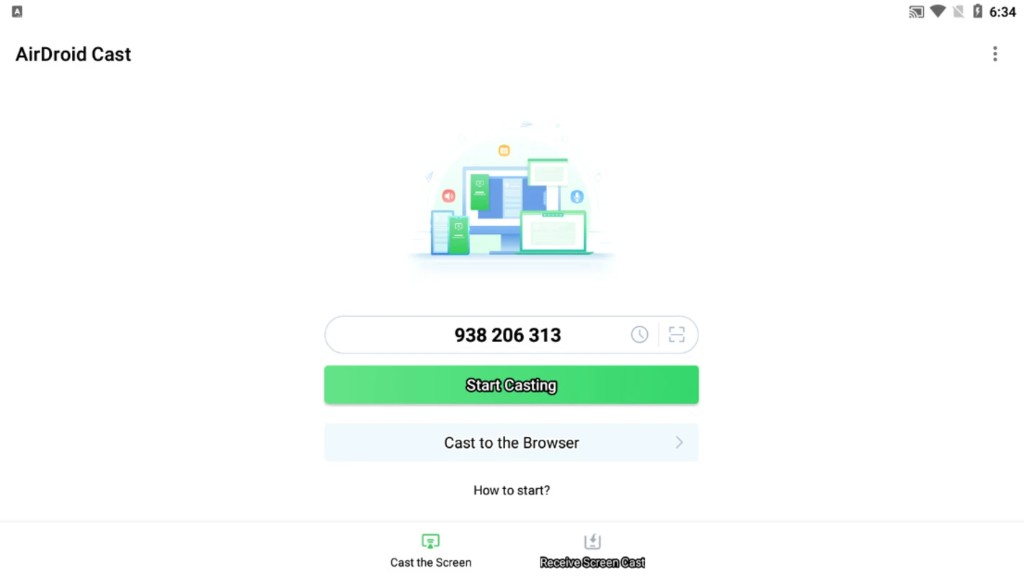
Share your code, tap Start Casting, or jump straight to browser receiving. Connection history and QR scan sit one tap away.
Unleash the full power of cross-platform screen sharing: real-time casting, TV output, flexible connections, remote control, and advanced multi-device collaboration tools.
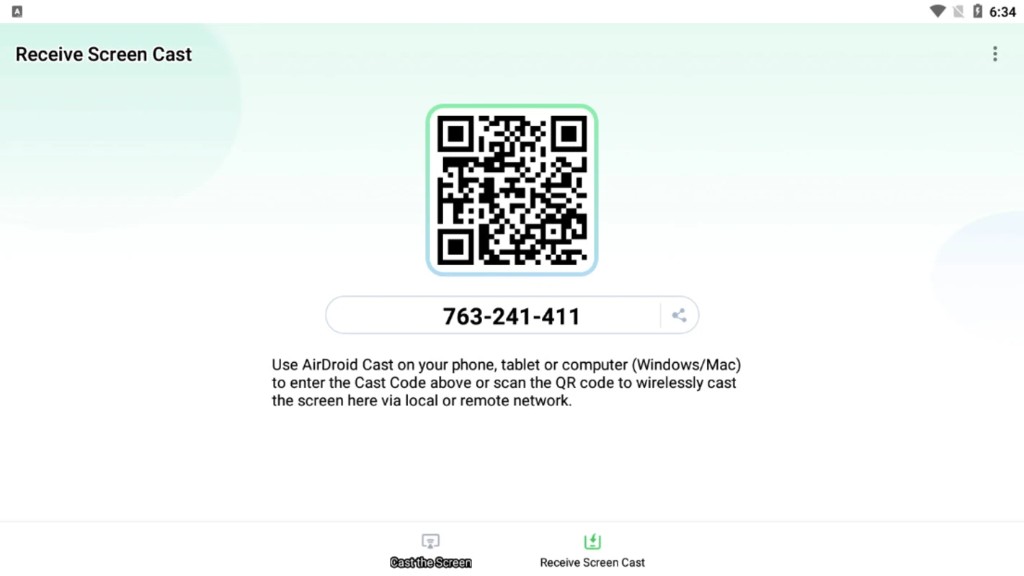
Open the Receive Screen Cast tab to get a unique 9-digit code or QR code. Phones, tablets, and computers on the same LAN or a remote network can mirror to you in seconds, with an optional Cast to Browser path when no install is needed on the receiver.
Share your code, tap Start Casting, or jump straight to browser receiving. Connection history and QR scan sit one tap away.
Scan from the sender device for zero-typing setup. Works across Windows, Mac, Android, iOS, and web clients on local or remote networks.
AirDroid Cast mirrors your phone or tablet to a computer and lets you demonstrate apps, run support sessions, or teach remotely. Cast to customer screens, partner demos, or use your tablet as a live blackboard during hybrid classes.
Up to five devices can cast to one receiver at the same time on the same network, perfect for panel reviews and side-by-side comparisons.
Step-by-step connection guide →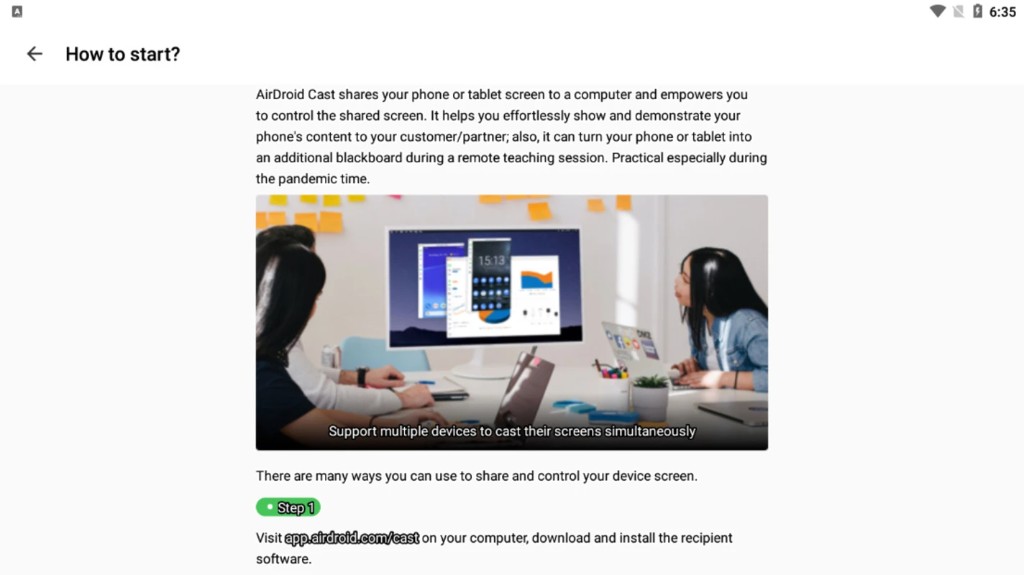
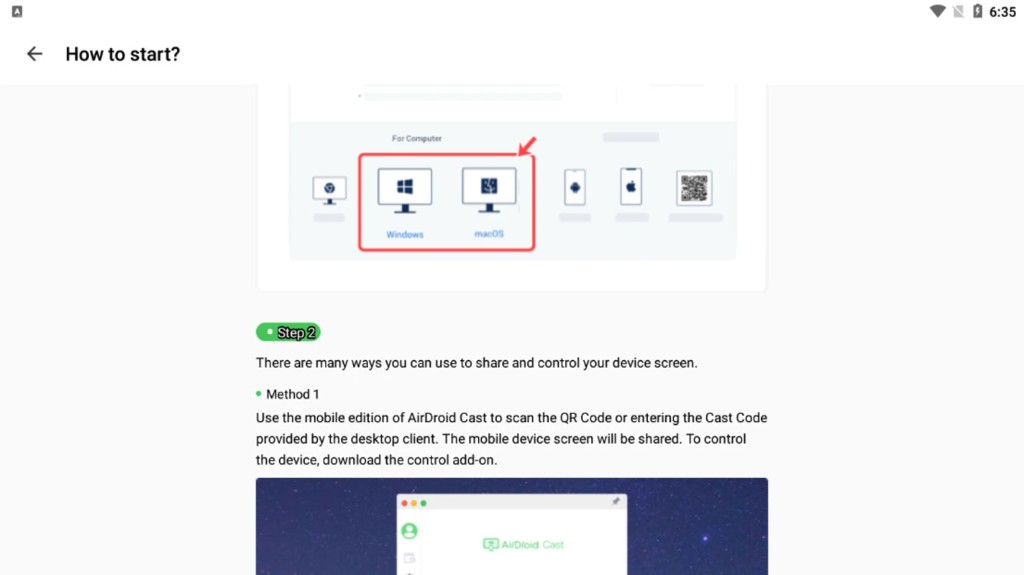
Method 1: Open AirDroid Cast on your phone, scan the QR code on the desktop client, or enter the 9-digit cast code. Your screen shares instantly. For full remote control, install the control add-on on the mobile device.
Supports Windows, macOS, web browser, Android, and iOS senders. Install the recipient on your computer from the official download page, then choose your platform and connect.
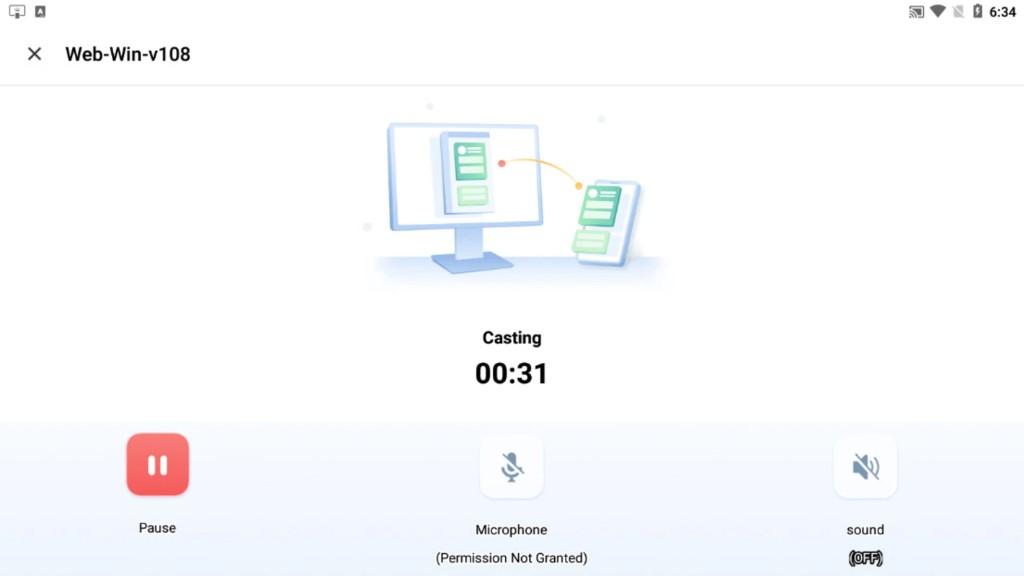
While a session runs, see the receiver name, a live timer, and one-tap controls to pause, resume, or end the stream. End casting asks for confirmation so you never disconnect by accident.
Session timer and device label stay visible so you always know how long you have been live and which receiver is connected.
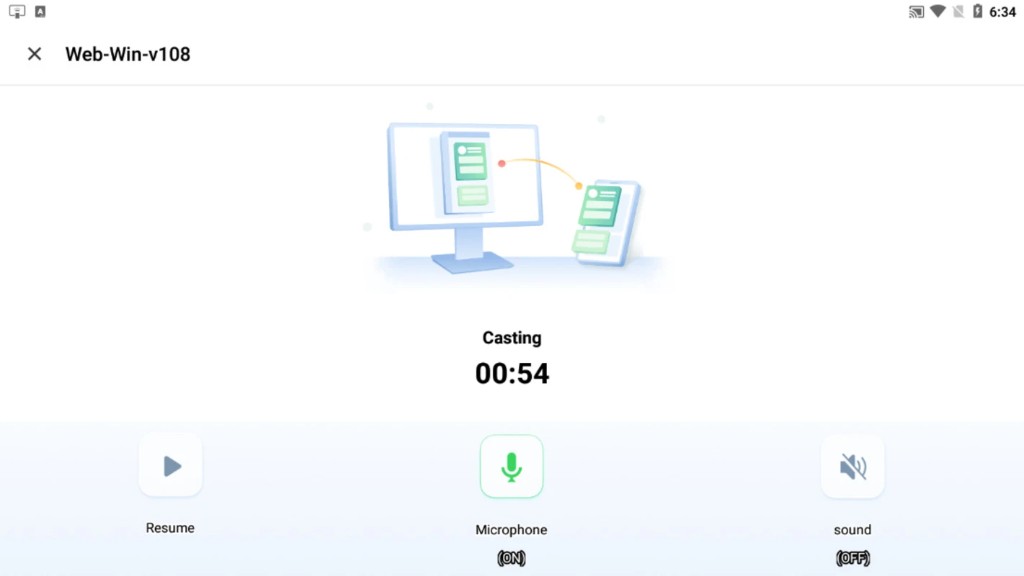
Freeze the stream during breaks without tearing down the connection. Resume with one tap when you are ready to continue.
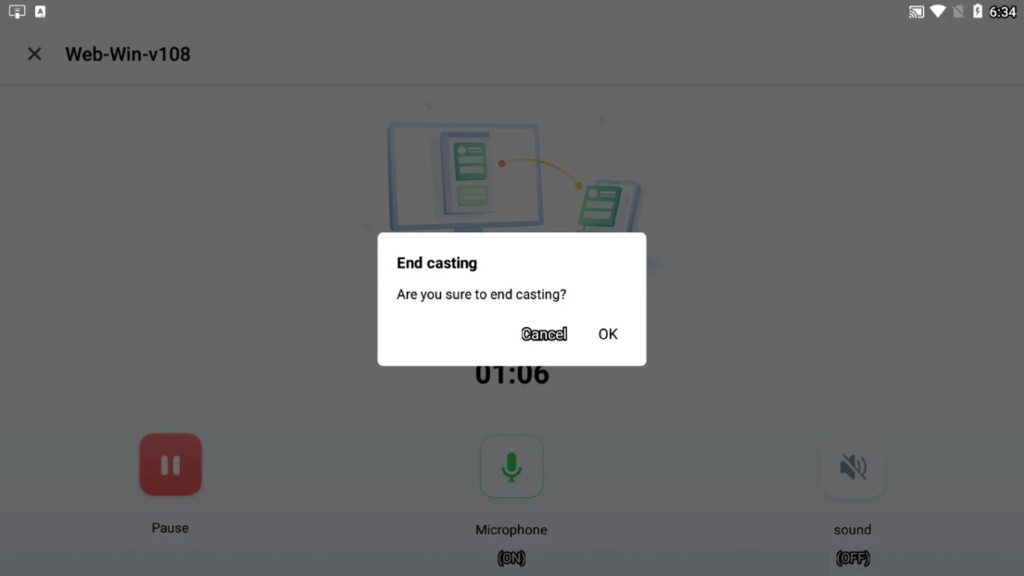
A clear End casting dialog protects long meetings and support calls from accidental taps.
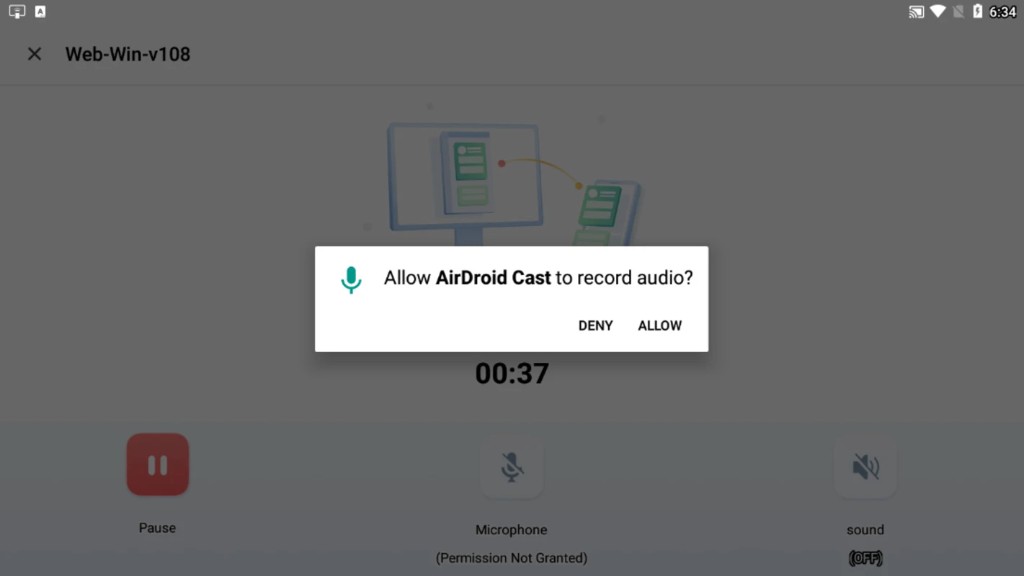
Toggle device audio and microphone from the session bar. Android asks for recording permission through the system dialog, so audio is only captured when you explicitly allow it.
Rename your device for quick identification in session lists and history notes. Keep Screen Awake prevents your phone from sleeping mid-demo.
Adjust FPS when casting: lower frame rates can improve motion clarity on weak WiFi, while higher FPS keeps demos smooth on strong connections.
USB and performance tips →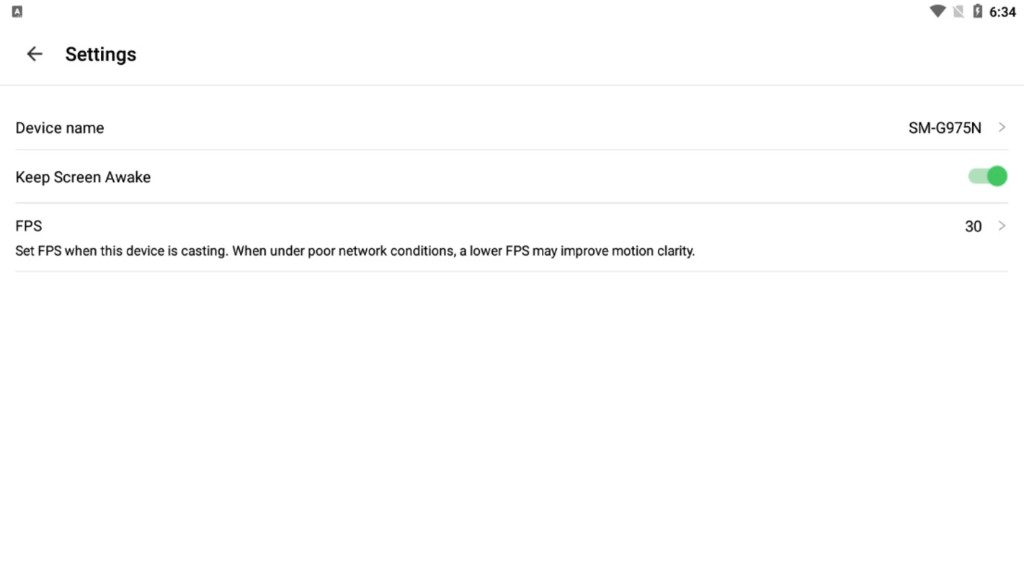
Add computers and tablets you use often to your trusted list. Recognized receivers can accept your screen without asking every time, while you stay in control of who is on the list.
Ideal for daily workstations, classroom PCs, and support desks you connect to repeatedly.
Trust and security policy →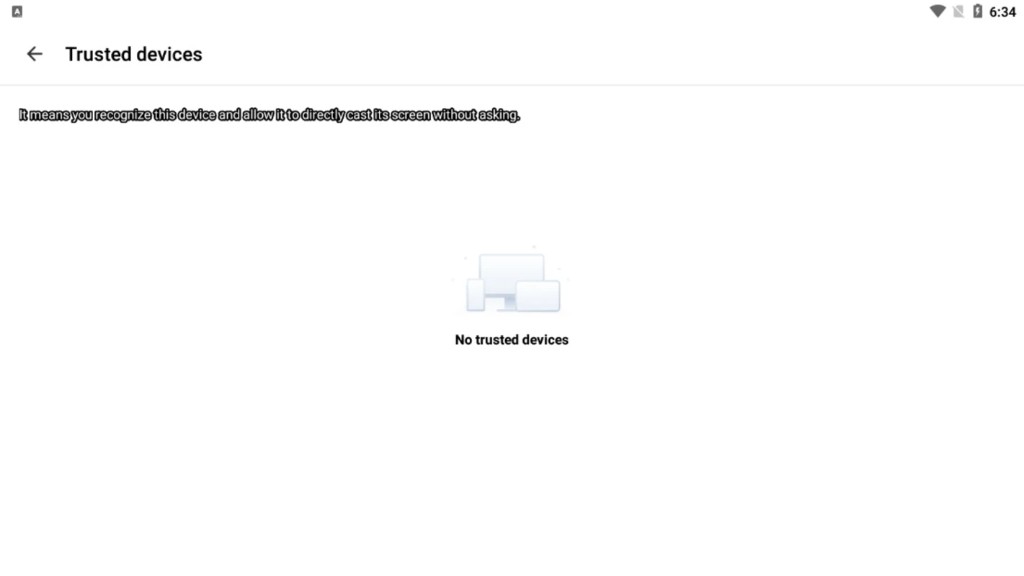
Beyond the mobile flows above, AirDroid Cast supports Android TV output, USB and AirPlay connections, remote mouse and keyboard control from PC, interactive annotations, and Cast Web for view-only browser receiving.
Mirror to Sony, Hisense, TCL, Skyworth, Philips, and most Android TV 5.0+ devices without HDMI cables.
Stable USB casting to PC with improved iOS success rates. Android can share with the screen off over USB to save battery.
Click, scroll, and type on the mirrored phone from Windows or Mac. Premium unlocks full touch control without emulators.
Draw and highlight on the shared screen during meetings for faster collaborative feedback.
Cast Web runs in Safari, Chrome, Edge, and Yandex for quick view-only sessions. The desktop client adds remote control and the deepest feature set.
Compare in FAQ →Download the latest build for your platform and follow our step-by-step guides.
Download Now